Resource Library
Organize PDFs, presentations, templates, articles, and links into searchable categories. Control access by member type, track downloads with Google Analytics, and share unlimited resources.
Everything You Need to Build a Member Resource Hub
Comprehensive features for organizing, protecting, and tracking member resources
Single or Multi-Page Display
Choose layout based on library size and preference
Categories & Subcategories
Organize resources into browsable groups and subgroups
Keyword Search
Members search by title, description, author, tags, or date
Member-Only Access Control
Restrict by member type, contact type, or public access
Google Analytics Integration
Track downloads and link clicks automatically in GA4
Bulk Import Tool
Excel-based import to add hundreds of resources at once
External Link Support
Point to YouTube videos, blog posts, or third-party tools
Flexible Sorting Options
Sort by date, title, author, or publication date
Pin Important Resources
Keep priority resources at the top with thumbtack icon
Collapsible Descriptions
Show/hide detailed descriptions for cleaner browsing
Custom Page Titles
Name it "Knowledgebase" or whatever fits your brand
Inactive Category Toggle
Hide seasonal content without deleting it
All Common File Types
PDF, DOC, XLS, PPT, images, HTML, RTF, TXT supported
Multi-Category Assignment
Show same resource in multiple categories
SEO-Safe Secure Storage
Members-only files never indexed by search engines
Generous File Storage
Subject to overall site storage limits—ample space for most organizations
Integrated Resource Library vs. Standalone Tools
No Separate Document Management System
Resource Library is built into your membership platform—members access resources automatically when they log in, no separate credentials or accounts needed. Most resource libraries require separate logins and manual uploads.
Access Control Based on Membership Data
Set permissions by member type, contact type, or membership status—and the system enforces them automatically. When a membership expires, access to members-only resources stops. When someone becomes a Board Member, board-only documents appear.
Track What Members Actually Use
Built-in Google Analytics integration tracks every download and link click. See which resources get the most engagement, which categories members browse, and prove ROI on the content you create—without custom coding or third-party tools.
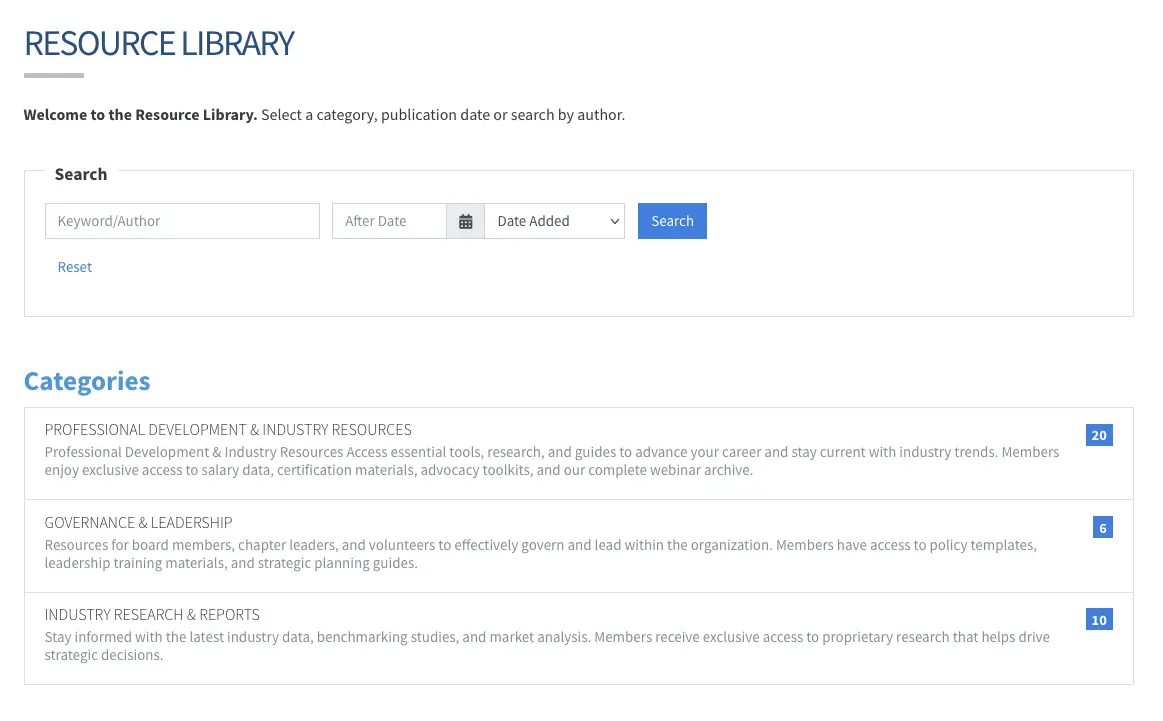
Members Find What They Need, Fast
Built-in search and sort tools—no digging through folders or emails.
Keyword Search:
- Searches across resource titles, descriptions, keywords/tags, and author names
- Publication date search—members can search by specific publication dates or date added
- Custom search label—change to "Search the Knowledgebase" or whatever fits your brand
Flexible Sorting:
- Sort by Date Added: Show newest uploads first
- Sort by Publication Date: Order by when resource was originally published
- Sort by Title: Alphabetical A-Z or Z-A
- Sort by Author: Group resources by who created them
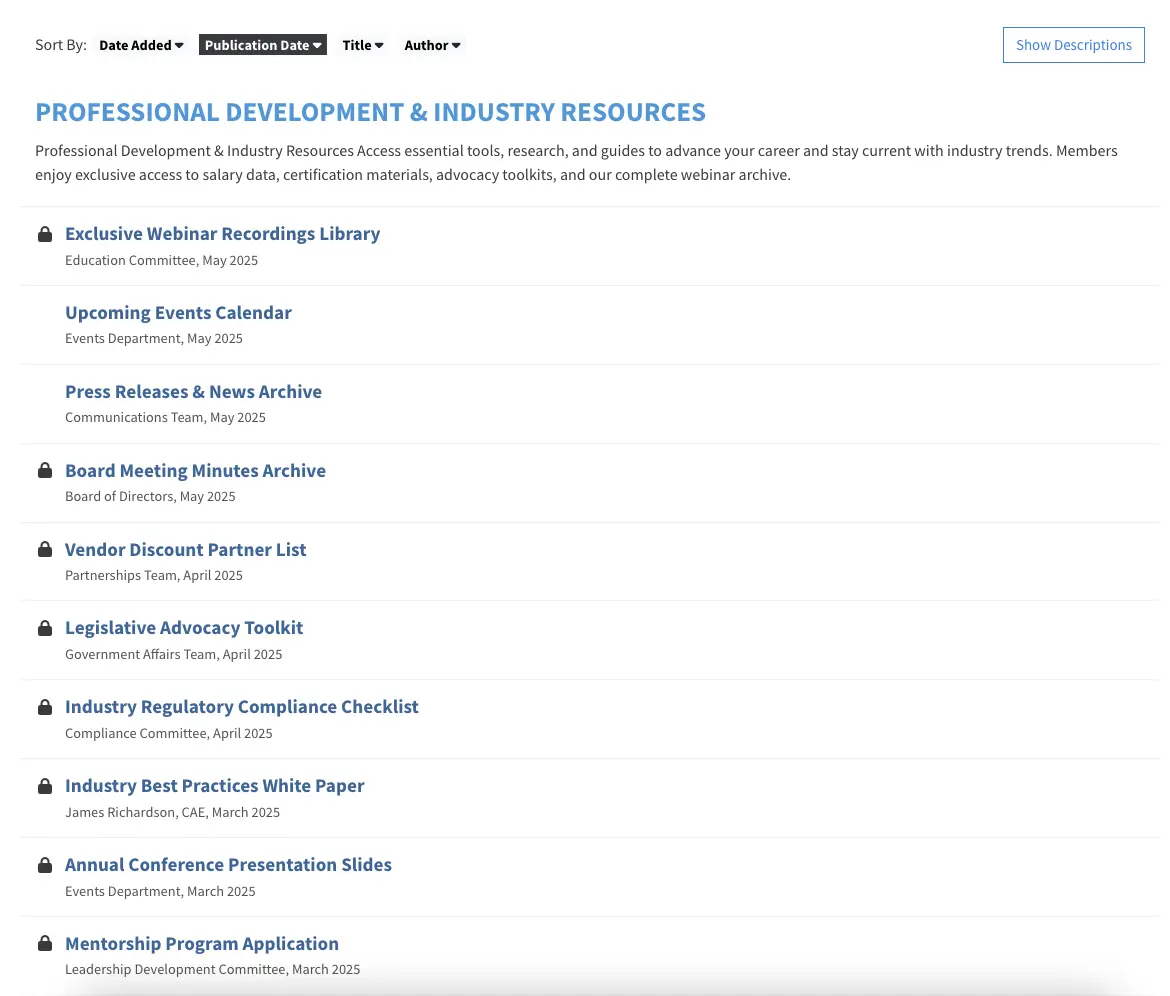
Protect Sensitive Content, Share Public Resources
Granular permissions by member type and contact type.
Access Levels:
- Public Access: Make resources available to anyone—no login required
- Members Only: Require login and current membership (or within grace period)
- Specific Member Types: Restrict to Student, Professional, Corporate, or any member type
- Contact Types: Show content only to Board Member, Sponsor, Volunteer, or Committee Chair contacts
Security:
- Members-only files stored in protected folders never indexed by search engines
- Access permissions sync automatically with membership status changes
- Even with member-only access, resource titles and descriptions remain visible—members prompted to log in when they click
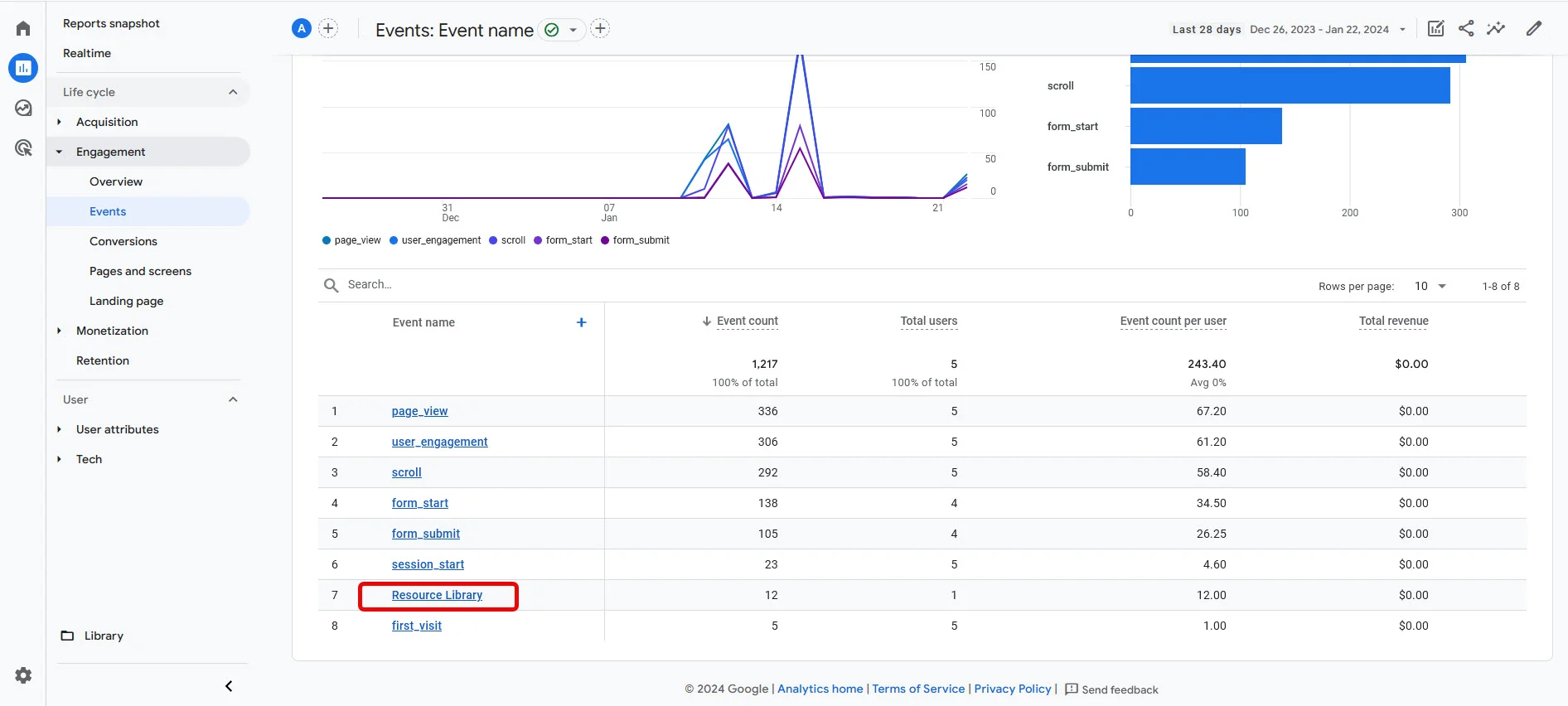
See Which Resources Members Actually Use
Connect your Resource Library to Google Analytics and track which files and links get the most attention.
What You Can Track:
- File downloads: See when members click to download PDFs, Word docs, or spreadsheets
- Link clicks: Track when members click external URLs you've added
- Event data in GA4: Every download or link click registers as an Event with the resource name
- Custom explorations: Export data from Google Analytics to analyze usage trends over time
Setup:
- Add your GA4 Measurement ID (starts with "G-") to Resource Library Module Defaults once
- From then on, every download or link click is tracked as a "Resource Library" event
- View which resources are most popular and prove ROI on member benefits
Resource Library FAQ
Explore Related Features
See how our integrated platform works together
Ready to Stop Answering "Where Is…?" Questions?
Schedule a demo to see how i4a's association management software handles searchable document organization, member-only access controls, and usage analytics in action for your organization.
